Bambu Studio and 3D Printing on Linux
For a few months now, as you know, I’ve gotten into 3D printing. And while at the beginning, I started with Klipper (for the 3D printer) and Slic3r (or rather its fork, Artillery Slicer) for slicing, since January I’ve switched to a Bambu Labs printer that I’m very happy with (that comment should upset LinuxFR).
Of course, when I bought the printer, I checked if there was a Linux-compatible slicer, because Windows is fine for gaming (even then) but if I can skip it for 3D printing, that’s good too.
Yes, but…
So yes, it’s “supported” (note the quotes) but it’s not as straightforward as for Windows and MacOS where you just click a button.
A quick visit to the tool’s download site will reveal that we Linux users are indeed second-class nerds for BambuLab.
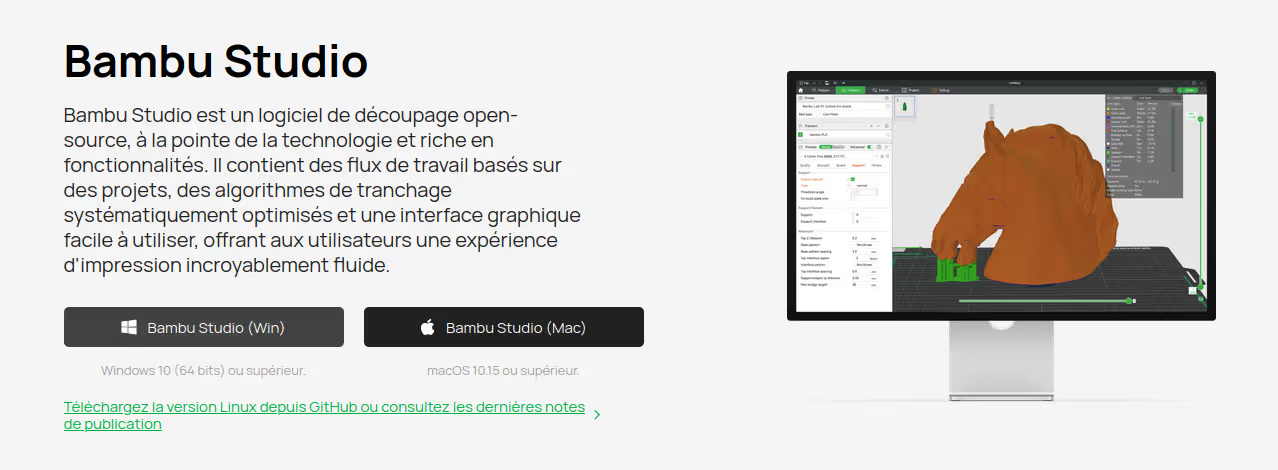
You can see in tiny text that for Linux, we’ll have to settle for Github releases.
Well, the idea of not bothering and using Wine emulation crossed my mind, but I figured I’d try the official method.
AppImage
There are two options. The first, via AppImages, is the one that’s highlighted but probably not the most “practical”.
Actually, I discovered a bit later that there’s a flatpak available through the flathub repository. The only “downside” is that it requires yet another package manager, but it’s not impossible that you already have it…
So, I’ll stick in this article with the method I used, namely AppImages, because it will allow us to play with Ubuntu’s .desktop files and that’s 2 tutorials in one (and that’s fun).
Download and Launch
This part is the simplest. So we simply go to BambuStudio’s github releases:
We take the latest one and download it:
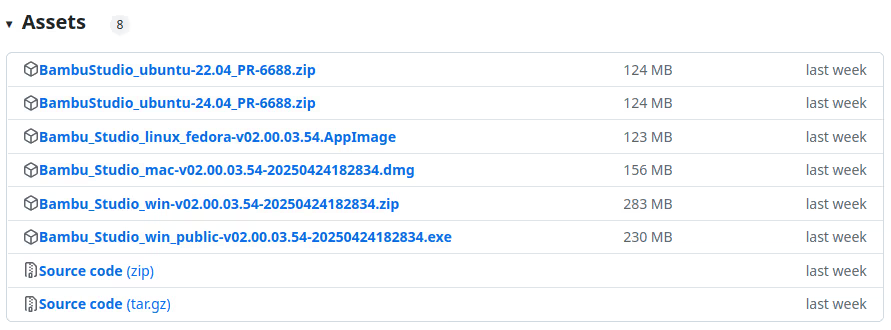
Note that AppImages are only available for Ubuntu 22.04 and 24.04 (and Fedora). A few versions earlier, it was 20.04 and 24.04. Since the AppImage is linked to libs (gtk) present on the OS, if you launch the Ubuntu image with the wrong version, it won’t find the lib version and it’s very annoying.
You can cheat by linking the versions so it finds the lib but it’s probably quite risky as a workaround…
sudo ln -sf /usr/lib/x86_64-linux-gnu/libwebkit2gtk-4.1.so.0 /usr/lib/x86_64-linux-gnu/libwebkit2gtk-4.0.so.37
Once the archive is downloaded and extracted, you’ll end up with a folder containing the AppImage directly.
If you double-click on it, it should work, Bambu Studio will launch.
Victory?
Yes OK, it works, but it’s still not very practical to go to the Downloads folder and click on the AppImage.
You can obviously move the AppImage to a folder in your PATH (/usr/local/bin) and call it via a terminal, but that’s not great either in terms of user experience (I’m not the only one doing 3D printing at home).
Enter .desktop files. This is a text file that will allow us to add the appImage to Ubuntu’s application list and that’s nice because it’s user friendly.
We’ll move the AppImage to a folder in PATH, and create a symbolic link:
cd /home/zwindler/.local/bin
mv Téléchargements/BambuStudio_ubuntu-24.04_PR-6688/Bambu_Studio_ubuntu-24.04_PR-6688.AppImage .
ln -s Bambu_Studio_ubuntu-24.04_PR-6688.AppImage bambustudio
Why am I creating a symbolic link? 2 reasons.
The first is that if I still want to launch Bambu Studio from my terminal (in case of issues at launch, I want to be able to see the logs), I can do it by simply running the command bambustudio and not Bambu_Studio_ubuntu-24.04_PR-6688.AppImage.
The second is that at the next update, I’ll “just” have to modify the symbolic link to point to the new appImage rather than having to redo all the steps that follow.
By default, all applications in the list are in your .local/share/applications/ folder:
zwindler@normandy:~$ ls .local/share/applications/
appimagekit-openshot-qt.desktop
Bambu_Studio.desktop
chrome-hmjkmjkepdijhoojdojkdfohbdgmmhki-Default.desktop
mimeapps.list
mimeinfo.cache
userapp-Firefox-V48P02.desktop
Here’s what our Bambu_Studio.desktop file should look like:
[Desktop Entry]
Name=Bambu Studio
GenericName=Bambu Studio
Comment=Bambu Studio
Exec=/home/zwindler/.local/bin/bambustudio %F
Icon=/home/zwindler/.local/share/icons/bambustudio.png
Terminal=false
Type=Application
Nothing too extravagant here, we mainly give the application name, a Type, and an execution path (and some additional parameters).
The most observant among you will have noticed that you can also add an icon, it’s true that it’s much nicer to add the Bambu Lab logo than the default icon…

I got the Bambu Lab logo from their Github and placed it in the /home/zwindler/.local/share/icons/ folder:
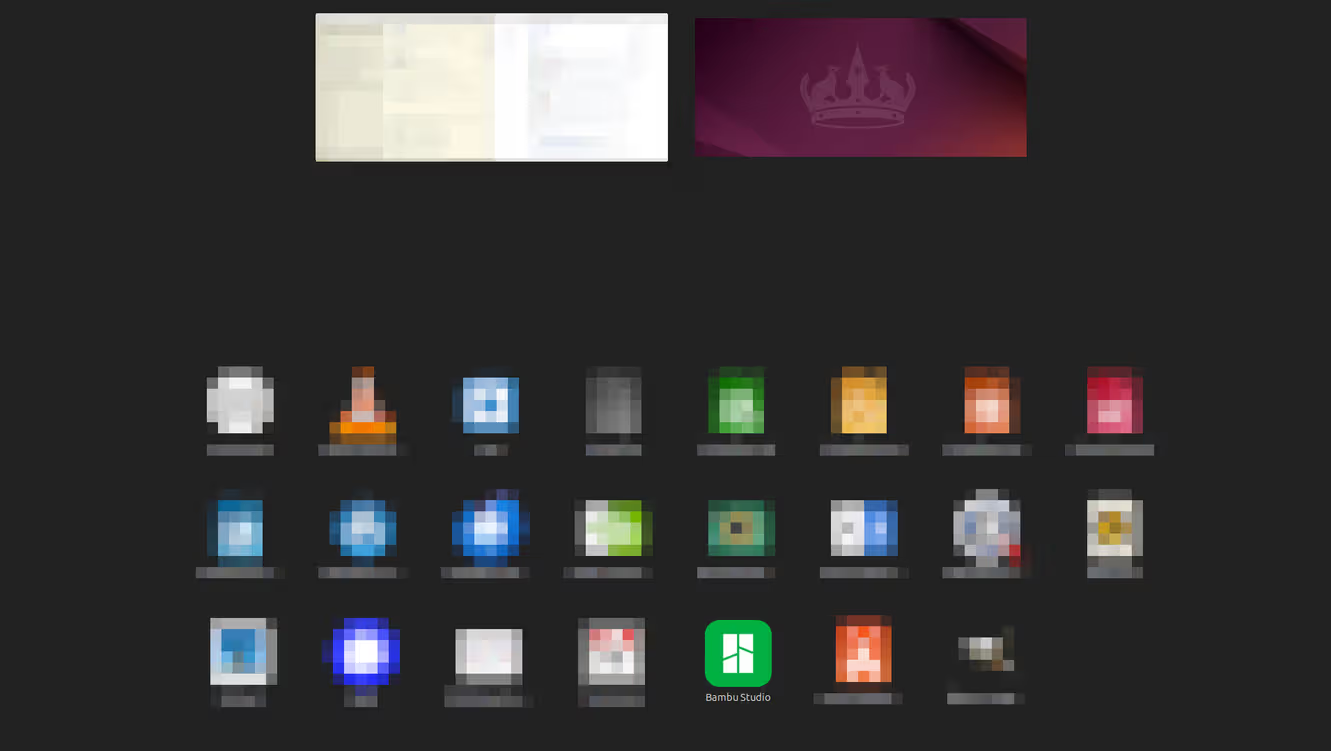
And here’s the result :)
Addendum
If you REALLY want to do AppImages, there’s a github project with 6k stars, AppImageLauncher, that helps manage AppImages
makes your Linux desktop AppImage ready™
Basically it’s a launcher for AppImages, which gives you the choice between installing AppImages for you or running them oneshot, deleting and updating images, and a CLI.
Thanks Fabio for the info.